Teleprompter: Vlog & Scripts
- 4.8
- Rating
- 1.00M
- Installs
- Free
- Price
 Analysis by App-foxy
I found Teleprompter: Vlog & Scripts most useful when I needed to speak naturally on camera without turning a recording into a stop-start editing job. It is a productivity app built around teleprompter work, but its appeal goes beyond simply placing words on a screen. The combination of floating notes, voice control, Bluetooth support, and high-resolution video recording gives it a practical role in short videos, presentations, lessons, product demonstrations, and personal updates.
My first impression was that the app is aimed at people who want a more controlled recording workflow without moving between several separate tools. Instead of writing a script in one app, recording in another, and trying to remember where each paragraph belongs, I can prepare the text and use it while filming. That sounds simple, but it changes the rhythm of recording. I spend less time looking down at notes and more time facing the camera.
It is available for free, with optional in-app purchases ranging from $1.99 to $59.99 per item. The app is rated for Everyone, which makes it approachable for students, families, educators, and small businesses. Solid Labs Co., Ltd is the developer, and the app has built a sizeable audience, with over a million installs and a 4.8 average from around eighteen thousand ratings. Those figures do not replace personal testing, but they do suggest that the basic idea has found a broad audience.
You May Also Like

 Blood Strike: 2.5 Anniversary
Blood Strike’s Loadouts Turn Every Drop Into a Tactical Gamble
A close look at Blood Strike’s custom loadouts: how fast access to signature weapons reshapes its battle royale rhythm, rewards preparation, and narrows the gap between fights.

 Pandora - Music & Podcasts
Pandora’s Music Is Easy to Start, but Harder to Recover
Pandora’s strength is its low-effort path from a seed to a station. Its weak spot is how much confidence it asks you to place in connection, setup, and quiet recovery.

 8 Ball Pool
 Is Built on Rivalries, Rematches, and Routine
A close look at the rivalries, rematches, shared routines, and unanswered safety questions that turn a quick pool match into a persistent mobile community.

 Samsung Music
’s Quiet Strength Is Playing What You Already Own
Its reach comes less from spectacle than from dependable access to a personal library. That simplicity is both the app’s strongest retention engine and its ceiling.

 AccuWeather: Weather Radar
AccuWeather Review: A Quick, Clear Forecast for Everyday Decisions
For everyday plans, the best forecast is the one you can understand quickly. AccuWeather makes rain timing, radar, and local conditions easy to act on, with a few trade-offs.

 Hill Climb Racing
Why Hill Climb Racing Still Turns Crashes Into One More Run
A tiny car, a bumpy hill and one more upgrade: Hill Climb Racing keeps resurfacing because its simple chaos makes every near-miss feel personal.
More From Our News Desk



How the app feels during ordinary recording
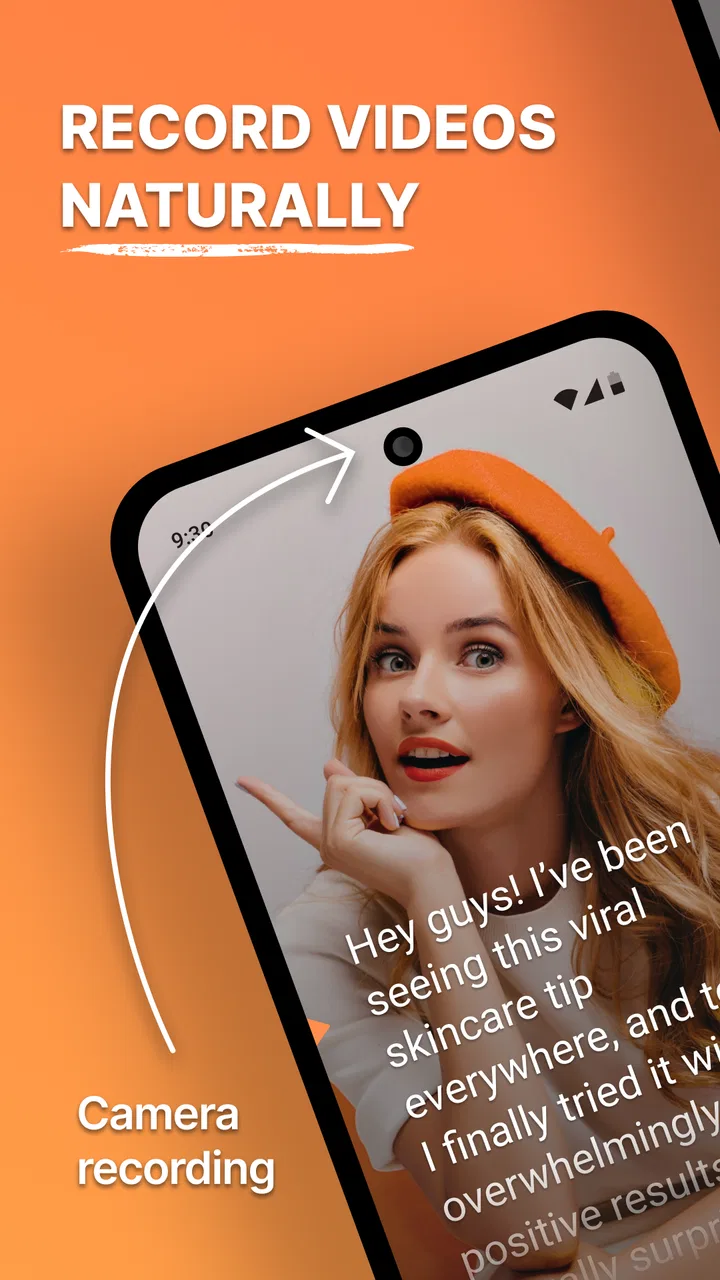
For a typical recording, the most important question is not whether the app has a long feature list. It is whether I can prepare a script, place it where I need it, start recording, and keep speaking without fighting the interface. Teleprompter: Vlog & Scripts generally makes that workflow feel direct. The usefulness comes from reducing small interruptions: opening a note, checking the next line, returning to the camera, and repeating the process until the delivery sounds disconnected.
The scrolling script is especially helpful when I want to preserve eye contact. I still need to write in a spoken style, because a teleprompter cannot make formal text sound conversational. When I use short sentences, generous spacing, and clear paragraph breaks, the reading experience feels much smoother. When I paste a dense block of writing, the app can display it, but the problem becomes my script rather than the tool.
I would not describe this as a replacement for preparation. It is better understood as a safety net. I can glance at the next thought instead of memorizing every line, while still leaving enough room to react naturally. That makes it suitable for creators who know what they want to say but do not want every pause and transition to depend on memory.
One useful workflow is to separate a script into spoken beats rather than traditional paragraphs. I put the opening line on its own, then the explanation, then the example, and finally the call to action. This makes it easier to pause or restart at a logical point. It also helps during longer recordings because I can recognize where I am in the structure without rereading the entire page.
Voice control changes how I manage the script
Voice control is more valuable than it may first appear. When I am positioned in front of a camera, touching the phone can be awkward. A gesture may shift the device, interrupt my posture, or make a cut necessary. Voice-based interaction gives me another way to move through the script while keeping my hands available for a demonstration or presentation.
There is a trade-off, though. Voice control works best in a quiet, planned setup. If I am recording near traffic, other people, music, or a noisy fan, I would rather rely on a physical control method or prepare the script so I rarely need to interact with it. A spoken command is useful only when the app can distinguish it from the words I am delivering. I therefore treat voice control as a convenience, not as the only control method I would trust for an important take.
A practical tip is to test the control flow before recording the full piece. I read the opening, pause, advance the script, and check whether the next section appears where I expect. This small rehearsal can reveal whether my speaking pace, room noise, and script layout work together. It is much less frustrating to discover that before recording a complete lesson or presentation.
Floating notes are best for prompts, not full scripts
The floating-notes approach is useful when I need a reminder that is separate from the main text. I can think of it as a second layer of preparation: the script contains what I plan to say, while a short note can hold a key fact, a visual cue, a question to answer, or a reminder to show something on camera.
This distinction matters. If I place every detail in floating notes, the screen can become visually busy and my attention gets divided. I get better results when the notes are brief, such as “show the close-up,” “slow down here,” or “mention the limitation.” That turns the feature into a lightweight production checklist rather than another wall of text.
For a product demonstration, I might keep the spoken explanation in the main script and use a floating note to remind me when to rotate the item, switch angles, or show a particular control. For a study video, the note could remind me to display an example after explaining a definition. These are small details, but they reduce the chance that a technically correct recording still feels incomplete.
Where heavier recording sessions can expose friction
The app is most comfortable when the recording is planned around one clear task. Longer sessions, complicated scripts, or several visual elements demand more attention from the device and from me. The high-resolution video option is attractive when image detail matters, but higher-quality recording naturally makes storage and device capability more important considerations. I would not begin a long shoot without checking available space and battery first.
That is not a criticism unique to this app; it is a practical constraint of recording video while displaying a moving script. The phone is handling the camera, the reading interface, and any control method at the same time. A newer device is likely to feel more comfortable during demanding sessions, while an older or entry-level phone may be better suited to shorter clips and simpler scripts.
I also prefer to divide a long presentation into sections. If I make one uninterrupted recording, a stumble near the end can force me to repeat a large amount of material. Recording in chapters gives me easier recovery points and makes it simpler to replace one section. The teleprompter remains useful in either approach, but the second method reduces the cost of mistakes.
Another realistic heavy-use moment is a live-style demonstration where I need to speak, move an object, and respond to the script. Here, the app helps with memory but cannot solve framing, lighting, focus, or sound. I still need to position the phone carefully and make sure the scrolling pace matches the action. If the visual demonstration is fast, a slow-moving script can become a distraction rather than an aid.
For that reason, I write action cues into the script with visible spacing. I avoid hiding an instruction inside a long sentence. A separate line such as “pause and show the screen” is easier to notice than a parenthetical phrase buried in the narration. This is one of the more useful ways to adapt the app to real production work: the script becomes both a speech guide and a timing map.
Recovery after mistakes is part of the experience
No teleprompter prevents every mistake. I still misread a line, lose my place, speak too quickly, or look less natural than I intended. The app helps recovery by keeping the next words visible, but I find it works best when I build recovery into the recording plan. Short sections, clear transitions, and deliberate pauses make retakes far less painful.
If I lose my place, I do not try to search through a crowded paragraph while continuing to speak. I pause, find the next section, and restart from a clean sentence. That approach creates a more usable edit and avoids the strained delivery that comes from trying to repair a mistake mid-sentence. In other words, the app supports recovery, but good script structure determines how quickly I recover.
Floating notes can help here as well. I use them to mark a safe restart point after a complicated explanation. If I have to repeat a section, I know exactly where to begin instead of scrolling through the entire script. This is a subtle advantage for anyone recording alone, because there may be no second person available to point out where the previous take went wrong.
Stability, setup habits, and everyday reliability
For me, reliability in a teleprompter app means more than avoiding a visible crash. It means the script stays usable, the controls do not become a distraction, and the recording setup remains predictable from one take to the next. Teleprompter: Vlog & Scripts is most dependable when I keep the workflow simple and test the arrangement before pressing record.
I recommend opening the script early, checking the text size and scrolling behavior, and then doing a short sample take. This lets me judge whether the words are comfortable to read from the actual camera distance. A script that looks fine while holding the phone close may be too small once the device is mounted farther away. Adjusting that before recording is more important than chasing a perfect layout after several failed takes.
Bluetooth support expands the setup options. It can be useful when I want to control the reading flow without reaching toward the phone, especially if the device is mounted at a distance. The benefit depends on the accessory and the room arrangement, so I would test the connection before relying on it for a presentation or client recording. Wireless control is convenient, but it introduces another part that needs to be ready.
My preferred reliability routine is deliberately boring: charge the phone, clear enough storage, connect any Bluetooth control, open the script, record a short test, and then begin the real take. This is not glamorous, but it prevents the most common avoidable interruptions. The app can simplify the speaking process; it cannot compensate for a phone that is nearly full or a control device that has not connected properly.
The current version is 7.0.4, and the app supports devices running Android 8.0 or later. That gives it a fairly broad reach, but operating-system compatibility is not the same as identical performance on every phone. Camera quality, available memory, screen size, and the condition of the device will all influence how comfortable the experience feels.
Device limits matter more than the feature list
Screen size is one of the most practical limitations. A compact phone may be easy to mount and carry, but it gives the script less room and can make frequent scrolling more noticeable. A larger display is easier to read from a distance, although it may require a sturdier stand and a more carefully balanced setup. I would choose the device based on the recording position, not merely on the app’s compatibility.
Older hardware also deserves realistic expectations. If I only need a short talking-head clip with a modest script, the workload should be manageable on a supported phone. If I want extended high-resolution recording while using floating notes, voice control, and a wireless accessory, I would be more cautious. The more elements I combine, the more valuable a short test becomes.
Storage planning is another overlooked issue. A teleprompter can make me feel ready to record repeatedly, which means I may keep several takes. High-resolution files can accumulate quickly, so I prefer to review and move successful clips after a session rather than letting every failed attempt remain on the device. This habit improves the next recording session and reduces the chance of running into a full-storage warning at the worst moment.
People using iOS or Android should also think about the rest of their setup, not just whether the app can be installed. A phone tripod, a comfortable camera height, and enough distance to read the script all affect the result. If the camera is too low, the video can look unflattering even when the teleprompter works perfectly. If the phone is too far away, the text may be difficult to follow. The app is one part of a physical recording arrangement.
Who will get the most from it
I would recommend this app to people who regularly speak to camera and want help staying organized. New creators can use it to avoid memorizing every line. Teachers can prepare lesson explanations without constantly looking down at paper. Small business owners can record product introductions with a more consistent message. Students can use it for presentations or video assignments when they want their delivery to sound prepared without sounding fully memorized.
It is also a strong fit for anyone who records alone. A solo creator has to manage the camera, the script, the timing, and the retakes without another person handling prompts. Voice control, Bluetooth support, floating notes, and a recording-focused workflow can reduce that workload. The app does not turn a one-person production into a professional studio, but it removes several little obstacles that otherwise add up.
I would be less enthusiastic for someone who prefers spontaneous, unscripted content. If the appeal of your videos is conversation, improvisation, or reacting quickly to changing events, a teleprompter may make the delivery feel too controlled. It is also not the best choice if you mainly need advanced video editing, elaborate scene management, or a complete post-production suite. In those situations, a dedicated camera app or editor may be the better center of the workflow.
There is another group that should approach it carefully: people who expect the app to make any script sound natural automatically. Reading from a screen can produce a flat tone if the text is written like an article. I get better results when I write contractions, keep sentences short, add intentional pauses, and include pronunciation notes for names or technical terms. The app supports delivery, but the quality of the writing still determines how human the recording feels.
How it compares with ordinary notes and separate camera apps
The simplest alternative is a paper outline or a notes app placed beside the camera. That can be enough for a short video, but it usually forces me to look away from the lens. The dedicated teleprompter approach is better when eye contact matters or when the wording needs to stay consistent. It also gives me a more organized way to combine a full script with small production reminders.
A separate camera app may offer a more focused filming experience, while a general notes app may be faster for writing. Teleprompter: Vlog & Scripts makes more sense when I want those tasks connected. The trade-off is that I am asking one app and one device to handle more of the session. If my priority is the highest possible camera control or advanced editing, I would compare it with specialized tools rather than assuming one app should do everything.
The free entry point makes it easy to test whether a teleprompter fits my habits before paying for optional extras. I would not buy anything immediately. I would first record a short clip, try the script layout, test voice control in the actual room, and see whether Bluetooth improves or complicates the setup. That trial tells me more than a feature list because the right choice depends heavily on how I record.
My performance verdict
After using it as a recording companion, I see Teleprompter: Vlog & Scripts as a practical productivity tool rather than a magic shortcut. Its strongest quality is workflow control: I can keep my words, prompts, and recording process closer together, which makes solo video work less fragmented. The app is particularly convincing for prepared speaking where eye contact and consistency matter.
Its speed and stability are best judged with sensible expectations. Short, well-structured recordings should be the easiest use case. Longer or more demanding sessions require attention to storage, battery, screen size, device age, and the number of features being used at once. I would not promise identical results on every supported phone, but I would say the app rewards a careful setup and a clean script.
The most important limitation is that it cannot replace production judgment. It does not decide where to pause, how much text belongs on one screen, whether a demonstration is framed well, or whether a sentence sounds natural aloud. Those decisions remain mine. In return, it gives me a useful framework for making those decisions easier to execute.
For an Everyone-rated app that can be installed free and used on Android 8.0 or later, it offers a broad starting point for creators, presenters, educators, and everyday users who want more confidence in front of a camera. Optional purchases may suit people who need more from the workflow, but I would begin with the basic experience and pay only if it genuinely saves time in my routine.
My recommendation is straightforward: choose it if your recordings depend on prepared words and you often work alone. Skip it if you mainly want spontaneous filming or a full professional editing environment. When the use case matches its strengths, the app helps me speak with fewer interruptions, recover from mistakes more cleanly, and keep my attention where it belongs—on the person watching.
FAQs for Teleprompter: Vlog & Scripts
01What is Teleprompter: Vlog & Scripts used for?
Teleprompter: Vlog & Scripts is designed to help creators read prepared text while recording videos, livestreams, presentations, tutorials, or social media content. Instead of memorizing a script or repeatedly looking away from the camera, you can display your words on screen and adjust the scrolling speed, text size, and layout to make speaking more natural and organized.
02Can I use Teleprompter: Vlog & Scripts while recording with my phone’s camera?
Yes, the app is intended for use during video recording and can help keep your script visible while you speak. Depending on your device and the version of the app, it may work with the built-in camera or provide recording-related tools within the app. Before recording an important project, check the camera permissions, test the script position, and confirm that your phone supports the desired setup.
03Does Teleprompter: Vlog & Scripts support imported or custom scripts?
The app generally allows users to create, paste, or edit their own scripts rather than relying only on sample text. This is useful for videos, speeches, product demonstrations, lessons, and interviews. Script organization and import options can vary by platform or subscription level, so users with many documents should review the available file support and storage features before downloading.
04Is Teleprompter: Vlog & Scripts free to download and use?
The application may be available as a free download, but some features can be restricted behind in-app purchases or a premium subscription. Common limitations may involve advanced recording tools, removing advertisements, script management, customization, or extended usage. We recommend checking the current pricing, trial conditions, renewal terms, and App Store or Google Play listing before starting a subscription.
05Is Teleprompter: Vlog & Scripts suitable for beginners?
Yes, the basic concept is easy to understand, making the app suitable for beginners who want to create more confident and structured videos. New users should begin with a short script, choose a comfortable scrolling speed, and position the text close to the camera lens to maintain eye contact. A brief practice recording can also help identify timing, readability, or permission issues.
Pros
- Simple script editor with adjustable text size and scrolling speed.
- Useful for recording videos
- presentations
- lessons
- and social media content.
- Mirrored text mode supports use with physical teleprompter rigs.
- Helps maintain eye contact while reducing forgotten lines and retakes.
- Convenient controls make it easy to pause or adjust the script while recording.
Cons
- Some advanced recording and customization tools may require a subscription.
- Long scripts can be harder to manage without strong organization features.
- Scrolling may need manual speed adjustments for different speaking styles.
- Small screens can feel cramped when reading lengthy scripts.
- Performance may vary depending on device camera and multitasking capabilities.

Teleprompter: Vlog & Scripts
Gallery